












Step 1: Download the App
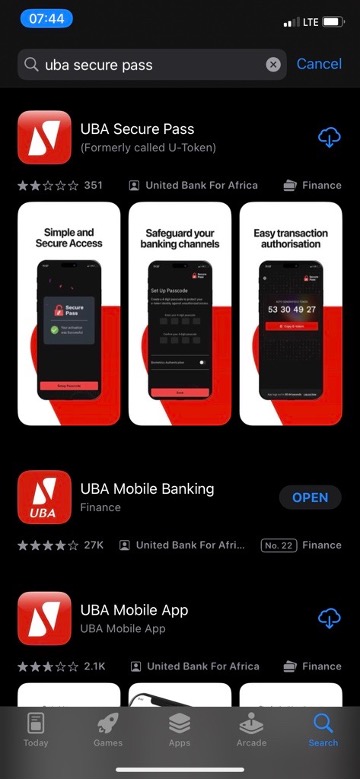
- Open Google Play Store or Apple App Store on your device
- Search for “Secure Pass”
- Download and install the app on your device
Step 2: Register Your Account
- Open the Secure Pass app.
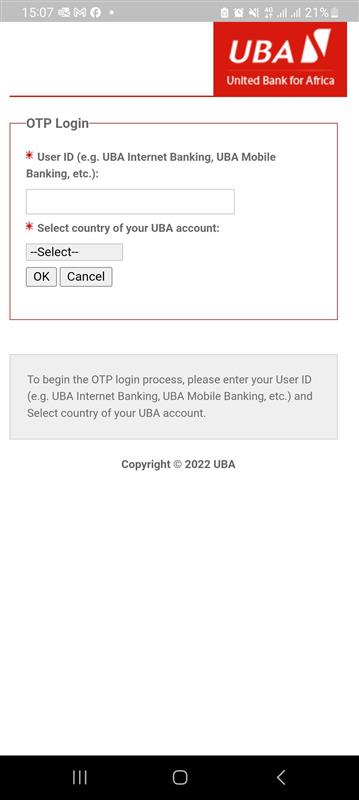
- Enter your UBA Internet Banking or Mobile app User ID.
- Select the country where your UBA account is domiciled.
- Click OK
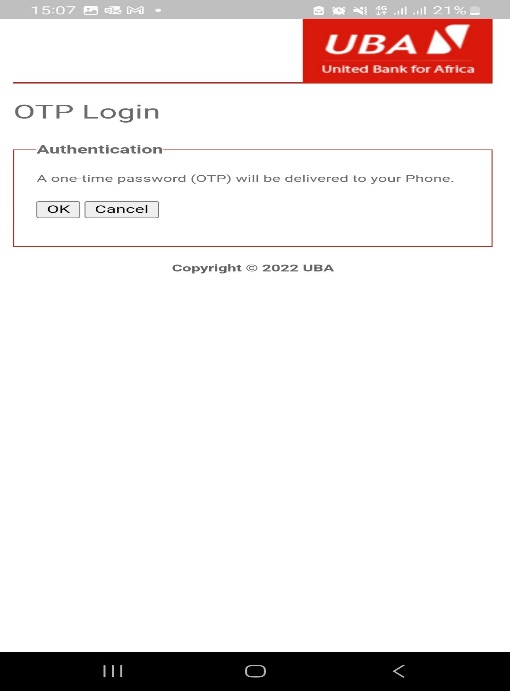
Step 3: Verify Your Identity
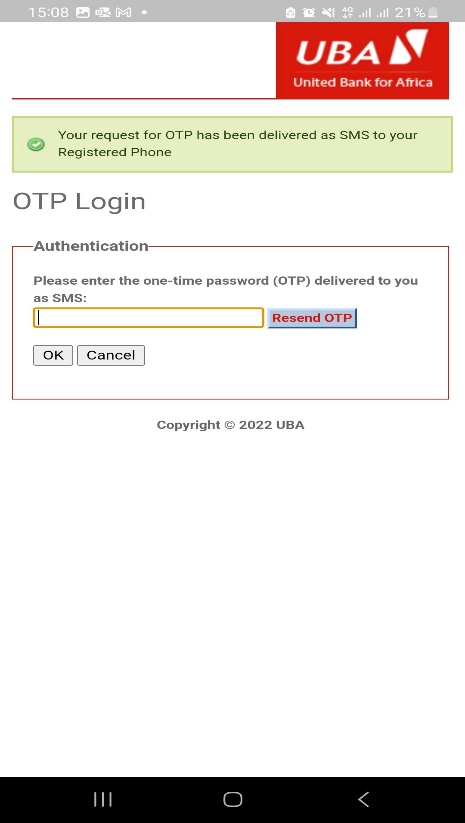
- A One-Time Password (OTP) will be sent to your registered email address or phone number.
- Enter the OTP in the app.
- Click OK.
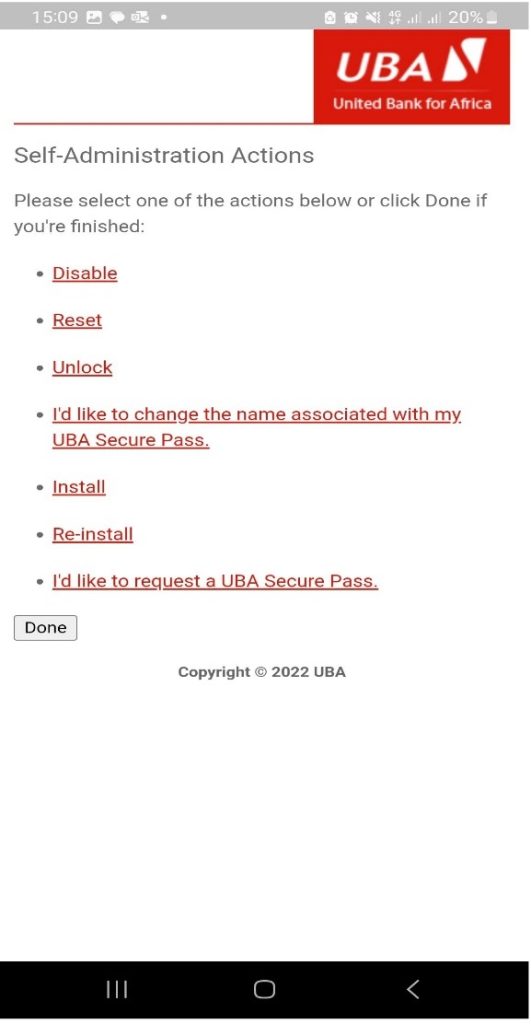
Step 4: Install or Reinstall
- Click on “I’d like to request a U-token”
- Select any of the options displayed as applicable
- Select Install if you are a new user
- Select Re-install if you have previously used Secure Pass
- Click Done
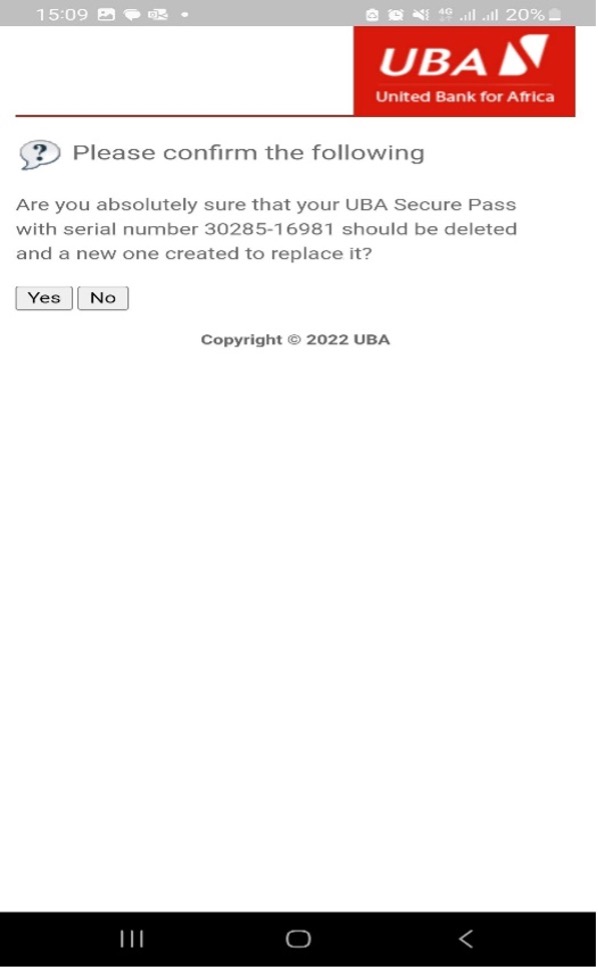
- Confirm the replacement of the existing Secure Pass with the one being downloaded (if you have it previously installed on your phone)
- Click ‘Yes’ if you want to delete the old Secure Pass on your phone
- Click ‘No’ if you do not want to delete the old Secure Pass on your phone
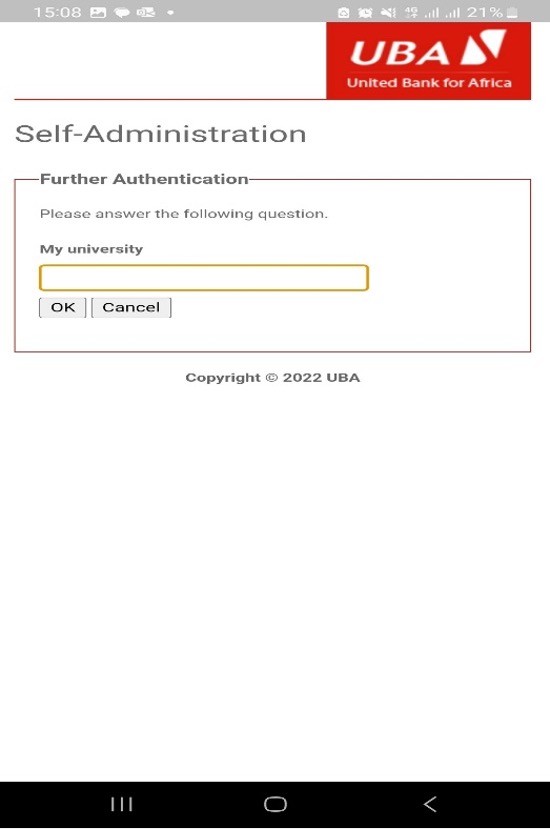
Step 5: Activate
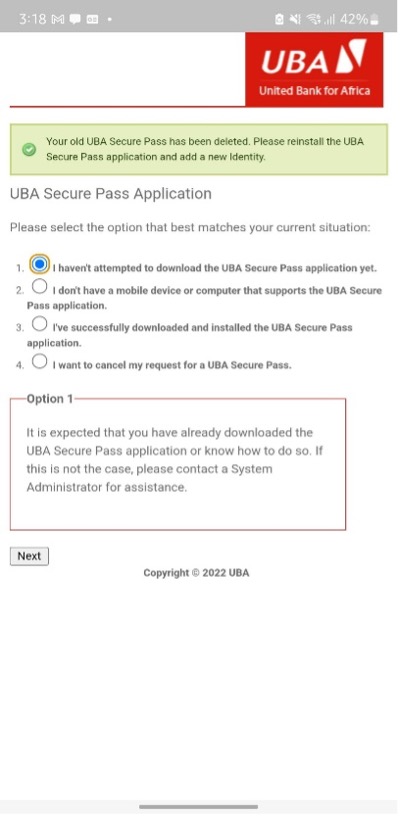
- Click on the appropriate option that matches your current experience.
- Click on “Next”
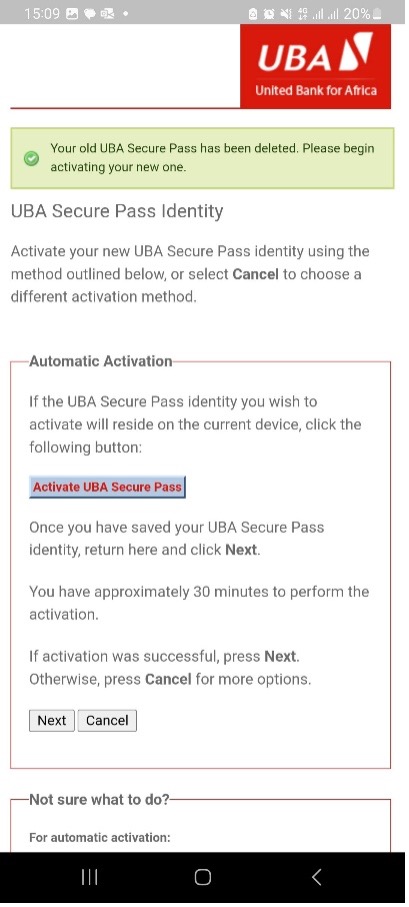
- Click “Activate UBA SecurePass”
- Insert and save your new Token Identity/name
- Click “Next”
Step 6: Activation Complete
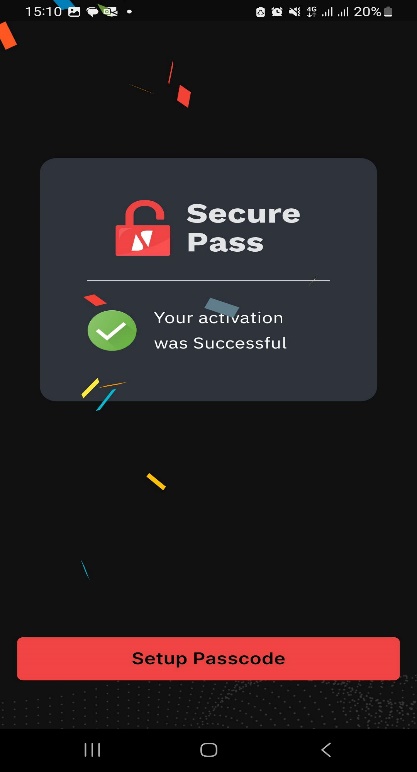
- Your Secure Pass has been activated successfully
- Select “Setup Passcode”
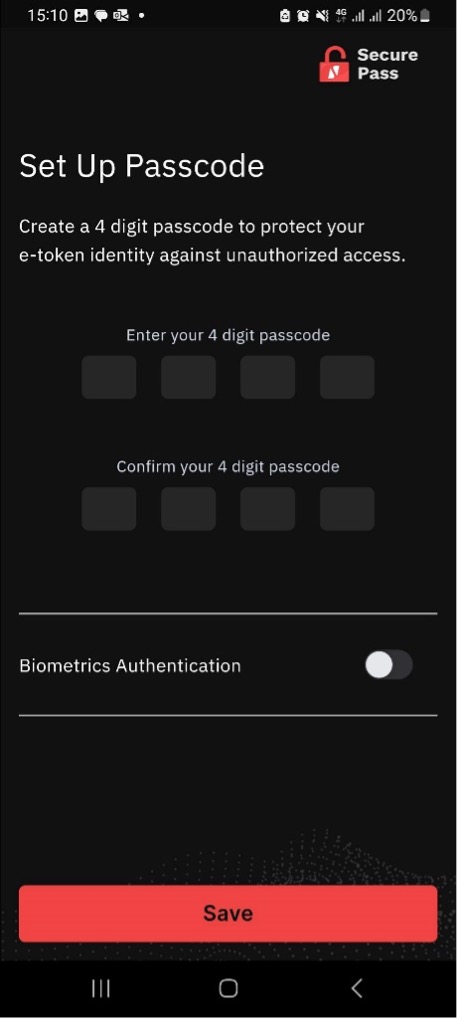
Step 7: Setup Passcode
- You are required to Set up your passcode by entering and confirming passcode (this passcode will be used to log in subsequently)
- You can enable the Biometric Authentication by sliding the button
- Select “save”
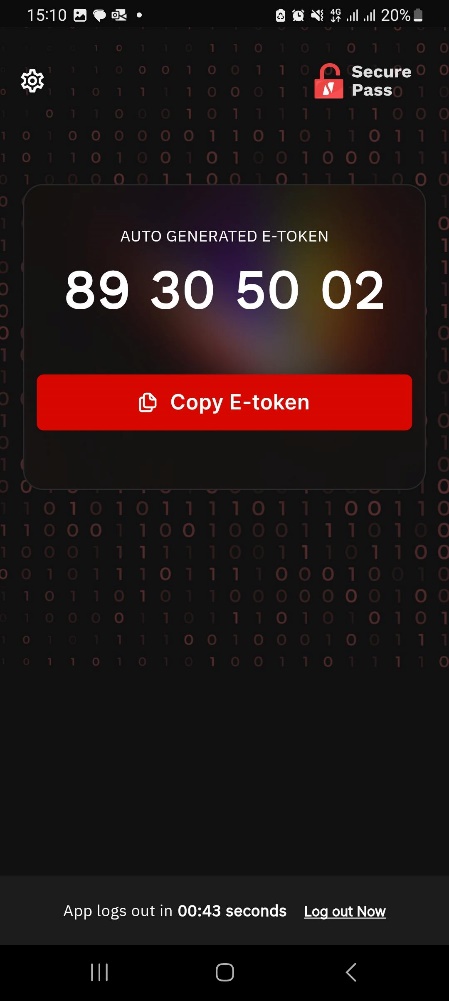
- Token code is generated
Need Help?
Contact UBA Customer Fulfilment Centre:
Quick Tip: Ensure the phone number and email address linked to your UBA account are up to date before starting the activation process.